Microsoft Teams Chat Recording: Preconditions
How to enable and configure Microsoft Teams Chat Recording in Luware Recording, including tenant prerequisites, Graph API permissions consent, user setup, and optional attachment capture.
Subject to Change
This is an evolving service. Specifications are subject to change and this article will be updated accordingly.
☝ Read This First
This article should be read alongside Initial Setup and Configuration. The preconditions and integration steps on that page must be completed before proceeding with the configuration on this page.
Overview
Luware Recording captures Microsoft Teams chat messages and file attachments from a customer's Microsoft 365 tenant using an Azure Enterprise Application with authorized access to the customer's tenant. The Enterprise Application uses the Microsoft Teams Export API to pull chat data for users and teams configured for recording in Luware Recording. Once ingested, compliance features such as retention, legal hold, and search can be applied to the recorded conversations.
The diagram below shows the integration points used for Microsoft Teams Chat recording.
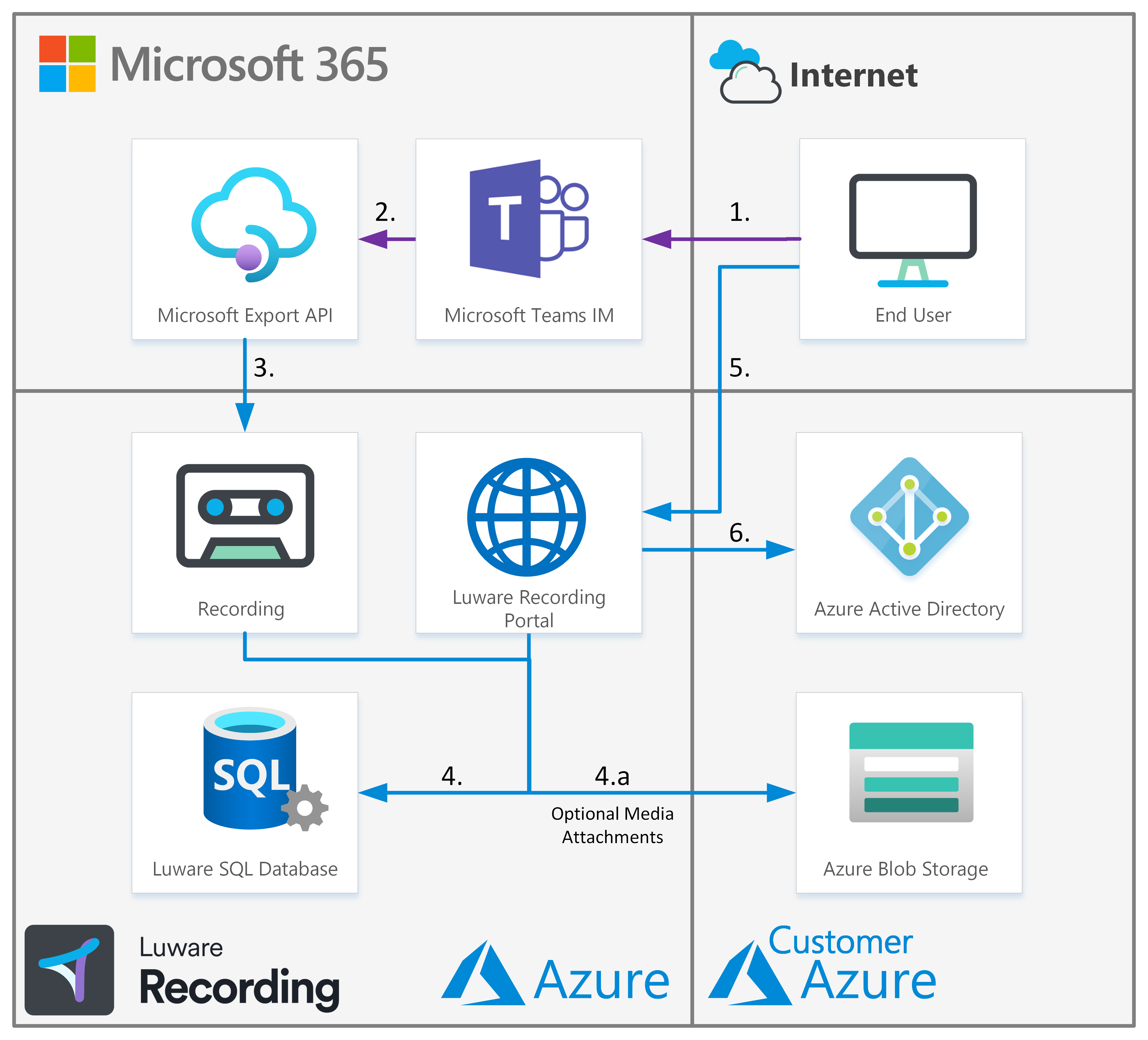
The recording process works as follows:
- A chat recording-enabled user logs into Microsoft Teams and begins a chat conversation.
- Microsoft Teams uploads chat messages to the customer-protected API.
- The Luware Recording Chat Enterprise Application pulls the chat data for recorded users via the Export API and imports it into the Luware Recording platform.
- Luware Recording stores the chat conversations in its database and makes them available in the web portal. If attachment capture is enabled, media attachments are encrypted and uploaded to the customer's Azure Blob storage location.
- The end user logs in to the Luware Recording web portal, authenticates via Azure Entra ID, and can view recorded chats and attachments.
How Chat Recording Works
Microsoft Teams Export API
Chat recording is powered by the Microsoft Teams Export API, accessed through an Azure Enterprise Application owned and managed by Luware. The Export API supports 1:1 chats, group chats, meeting chats, and channel messages.
Export content with the Microsoft Teams Export APIs on Microsoft Learn provides further technical detail.
Recorded Users
You can select which users have their Microsoft Teams chats recorded. When a user is enabled, all 1:1 chats, group chats, and meeting chats they participate in are captured and made available in the Luware Recording web portal. Teams channel conversations are handled separately and must be added independently, as described in Add Teams and Channels below.
Users are added for recording through the Luware Recording Azure Entra ID synchronization function, which should have been set up as part of Initial Setup and Configuration. To enable a user for chat recording, add them to the Entra ID security group configured for synchronization with Luware Recording. They will be synced automatically on the next overnight sync cycle.
Attachments
Attachment capture is an optional feature. When enabled, the Luware Recording Chat Enterprise Application downloads attachments via the Export API, encrypts them, and uploads them to the customer's Azure storage location with a single retention policy applied per tenant. Attachments can then be viewed in the Luware Recording web portal alongside the chat transcript.
If attachment capture is not enabled, file attachments are not stored and will not be visible in the portal.
Look-Back
Luware Recording can perform a look-back to retrieve historic chat messages that were not captured at the time, for example due to a configuration gap or a processing incident. Note that if messages already imported are included in the look-back scope, they may be duplicated.
A look-back is a chargeable addition unless the missed data resulted from a Luware incident or problem. To request one, contact your account manager.
☝ Microsoft Teams Data Retention
Microsoft Teams only retains chat messages and attachments for a defined period. If messages or files have been removed by a Teams policy before a look-back is requested, they cannot be retrieved by Luware Recording.
Microsoft Licensing
Microsoft Communications DLP License Required
Every user whose chat messages are to be recorded must have a Microsoft Communications DLP license enabled on their account. Without it, the Export API will not permit chat data for that user to be exported, and no messages or attachments will be imported into Luware Recording.
💡 Microsoft Licensing Changes
Microsoft licensing requirements are subject to change. Always follow current Microsoft guidance on licensing and contact Microsoft directly for the latest requirements. Luware can provide general guidance but cannot confirm Microsoft licensing on your behalf.
Customer Tenant Configuration
The following steps must be completed within your Azure tenant before Luware Recording can begin capturing Microsoft Teams chat data.
Graph API Permissions Consent
The Luware Recording Chat Enterprise Application requires the following Microsoft Graph API permissions to be consented on your tenant. These allow it to access the chat data needed for accurate recording.
| Permission | Description |
|---|---|
User.Read.All |
Allows the app to read the full set of profile properties, reports, and managers of other users in your organization. |
Group.Read.All |
Allows the app to list groups and read their properties and memberships, including calendar, conversations, files, and other group content. |
Chat.Read.All |
Allows the app to read all 1:1 and group chat messages in Microsoft Teams without a signed-in user. |
ChannelMessage.Read.All |
Allows the app to read channel messages in Microsoft Teams. |
ChannelMember.Read.All |
Allows the app to read the members of channels. |
Files.Read.All |
Allows the app to read all files the signed-in user can access. |
Sites.Read.All |
Allows the app to read documents and list items in all site collections. |
Team.ReadBasic.All |
Allows the app to read basic properties of Microsoft Teams, including team name, ID, and associated Microsoft 365 Group. Not required if channel recording is not configured. |
To consent to these permissions, visit the URL below as a Global Administrator, replacing <CUSTOMER TENANT ID> with your actual tenant ID and <CLIENT ID> with the Luware client ID.
💡 Luware Client ID
Contact your partner admin or Luware support to obtain the <CLIENT ID> value before proceeding.
https://login.microsoftonline.com/<CUSTOMER TENANT ID>/adminconsent?client_id=<CLIENT ID>&redirect_uri=https://luware.comAdd Users to Azure Entra ID Security Groups
Users must be members of an Azure Entra ID security group that is configured for synchronization with Luware Recording before they can be enabled for chat recording. This group may already exist if it was created as part of Initial Setup and Configuration. If a separate group is needed for chat recording users, create it in Azure Entra ID and provide the group name to your assigned Luware engineer.
Managing group membership is your responsibility. Luware Recording synchronizes with configured security groups twice daily, overnight. Users added or removed from the group will not be reflected in Luware Recording until the following day's sync.
Enable the Microsoft Communications DLP License
Each user to be recorded must have the Microsoft Communications DLP license enabled. Without it, the Export API will not export that user's chat data.
Go to the Microsoft 365 Admin Center.
Navigate to Users > Active Users.
Search for the user and open their license options.
Enable the Microsoft Communications DLP license and save.

Add Teams and Channels (Optional)
Teams channel conversations are not captured automatically when users are added for recording. Each Team must be added to Luware Recording individually by providing its Object ID to your Luware engineer.
Enabling recording for all channels across all teams requires every user in the tenant to have the Microsoft Communications DLP license assigned. If only specific Teams need to be recorded, only the Object IDs for those Teams need to be provided.
To find the Object ID of a Team:
Log in to Azure Entra ID and go to All Groups.
Search for the team name to locate the group object.
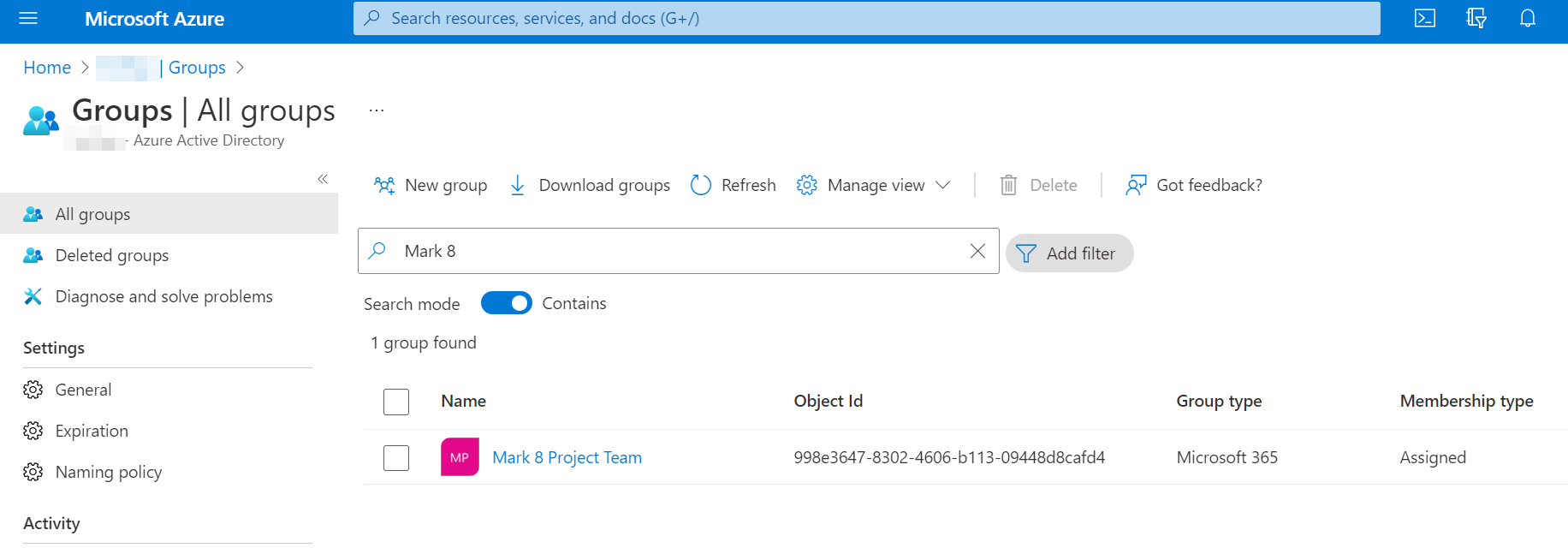
Select the group to open its properties and copy the Object ID.

Send the Object ID and the Team name to your Luware Recording engineer to have the team added for recording.
Once a Team is added, all channels within it are recorded. All chat messages sent in those channels will be captured.
Notify Luware of Any Changes
Adding Teams for recording is not automated. If new Teams are created on your tenant and require recording, you must provide their Object IDs to Luware via the support channel. It is your responsibility to notify Luware of any additions or changes.
Capture Attachments (Optional)
To enable attachment capture, notify your Luware engineer. Once enabled, file attachments shared in recorded chats are downloaded via the Export API, encrypted, and uploaded to your Azure storage location.
A configured storage target is required. This should already exist from Initial Setup and Configuration. You can use the same storage target as your voice recordings or create a dedicated one for chat attachments. Note that chat attachments can only be uploaded under a single data management policy per tenant.
You will also need to grant the Luware Recording Chat Enterprise Application access to your Azure storage account. Your Luware engineer will confirm the specific access requirements during setup.