MS Teams Recording Controls Application
How to deploy and use the Luware Recording Controls Application, a native Microsoft Teams app that lets privileged users start, stop, pause, and resume compliance recordings directly from their Teams client.
Overview
The Luware Recording Controls Application is a custom Microsoft Teams application that gives authorized users real-time control over their compliance recordings. It works on both Desktop and Mobile Teams clients and connects directly to Luware Recording to display active conversations and allow recording actions without leaving Teams.
The application is compiled by Luware and deployed into your Microsoft 365 Teams environment as a custom app package. Deployment involves four steps: registering a Dev app in the Teams Developer Portal, uploading the app package to your Teams Admin Center, consenting to the required Graph API permissions, and installing the app for end users.
☝ Not Customizable
The Luware Recording Controls Application cannot be customized. Its features and interface are fixed as delivered.
Supported Features
| Feature | Functionality | Description |
|---|---|---|
| Recording Controls | Display ongoing conversations | Shows the active Microsoft Teams conversations the user is participating in. The user selects which conversation to control. |
| Recording Controls | Start recording | Allows the user to gain recording consent from participants before initiating Compliance Recording. |
| Recording Controls | Stop recording | Allows the user to stop Compliance Recording, for example if consent is withdrawn. Each Start/Stop cycle creates a separate recording file. |
| Recording Controls | Pause and resume recording | Allows the user to pause and resume Compliance Recording without ending the session, for example when a conversation moves to a topic containing PII or other content that should not be recorded. Pause/Resume requires always-on recording and produces a single recording file for the full session. |
| View Recordings | Playback conversations | Allows the user to view and play back their recordings. Note that this may require additional user configuration to enable replay access. |
Deployment Steps
Deploying the Recording Controls Application involves the following four steps, each covered in detail below.
- Register a Dev app in the Teams Developer Portal.
- Consent to the required Microsoft Graph API permissions.
- Deploy the Luware Recording app package in the Teams Admin Center.
- Install the app in the end user's Teams client.
Step 1: Teams Developer Portal App Registration
Before the Luware Recording app package can be prepared, a Teams app must be registered in the Microsoft Teams Developer Portal. The App ID generated during this step is required by Luware to compile the application bundle.
Log in to the Microsoft Teams Developer Portal.
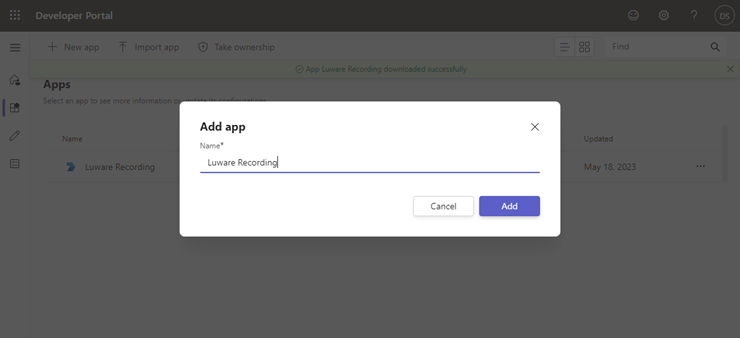
Navigate to Apps and click New app.
Name the application Luware Recording and click Add.
Note the generated Teams App ID shown on the app overview page.
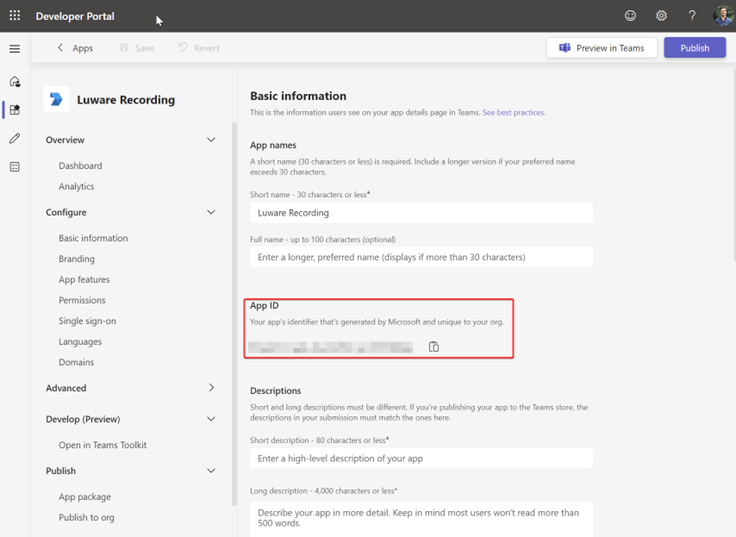
Share the App ID with the Luware technician assisting you. It is needed to prepare the Luware Recording application bundle.
Step 2: Microsoft Graph API Consent
The Recording Controls Application requires the following Microsoft Graph API permissions to be consented on your tenant.
| Permission | Type | Description |
|---|---|---|
email |
Delegated | View users' email address. |
Group.Read.All |
Application | Read all groups. |
offline_access |
Delegated | Maintain access to data the app has been given access to. |
openid |
Delegated | Sign users in. |
profile |
Delegated | View users' basic profile. |
User.Read |
Delegated | Sign users in and read user profile. |
User.Read.All |
Application | Read all users' full profiles. |
To consent, open the URL below in a browser, replacing <CUSTOMER TENANT ID> with your tenant ID and <CLIENT ID> with the Luware client ID. Sign in as a Global Administrator when prompted.
💡 Luware Client ID
Contact your partner admin or Luware technician to obtain the <CLIENT ID> value before proceeding.
https://login.microsoftonline.com/<CUSTOMER TENANT ID>/adminconsent?client_id=<CLIENT ID>&redirect_uri=https://luware.comStep 3: Deploy the App Package in Teams Admin Center
Once Luware has prepared the application bundle using your App ID, you will receive a ZIP file containing the Luware Recording Controls Application. This needs to be uploaded to your Teams Admin Center so it becomes available to end users.
💡 Before You Start
Contact your partner admin to obtain the ZIP file containing the Luware Recording Controls Application before beginning this step.
Log in to the Microsoft Teams Admin Center.
Navigate to Teams apps > Manage apps.
Click Upload new app, then click Upload in the confirmation popup.
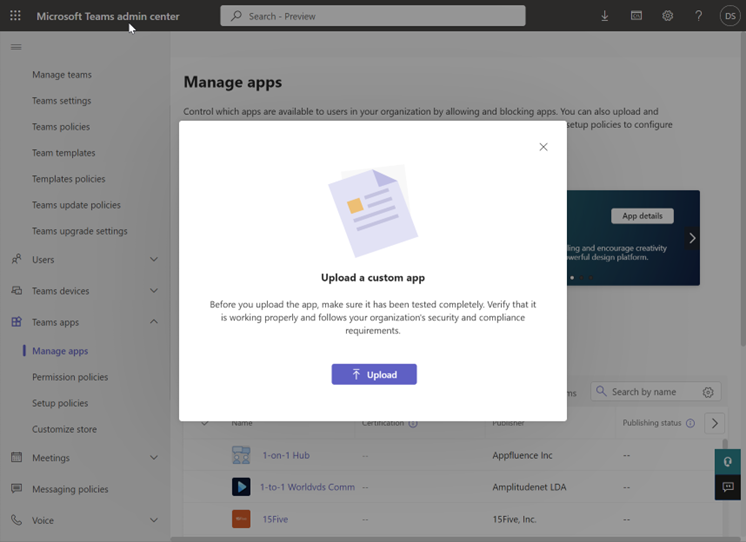
Browse to the ZIP file provided by your partner admin and confirm the upload. Microsoft will display a confirmation message if the upload is successful. The application is now available for end users to install.
Step 4: User Application Installation
Once the app is available in your Teams environment, end users can install it themselves from within their Teams client.
Open the Apps store within the Microsoft Teams client.
Search for Luware Recording.
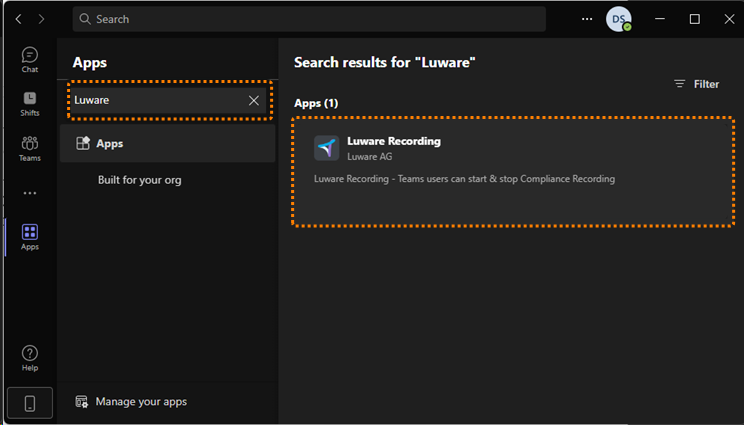
Click Add to install the application.
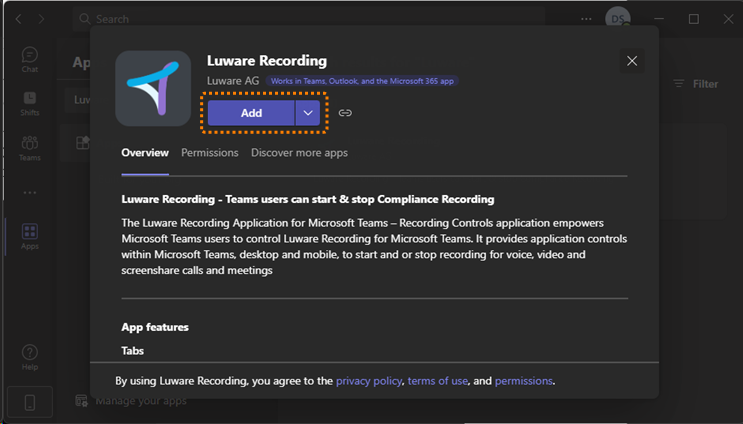
The Luware Recording Controls Application is now available in the user's Teams client.
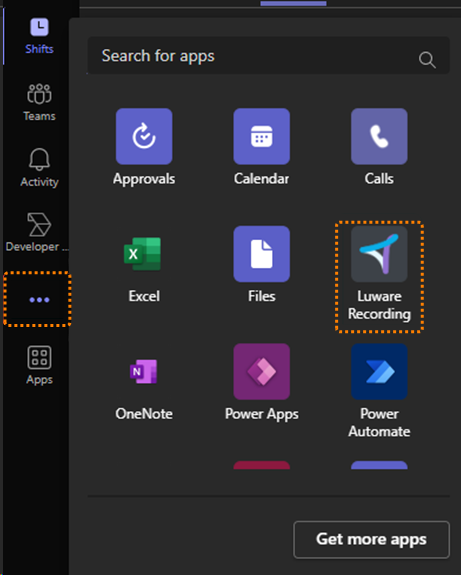
Using the Controls Application
When a user opens the application in Microsoft Teams, it authenticates automatically and connects to Luware Recording. Active conversations the user has access to are displayed, with controls available to start, stop, pause, or resume recording.
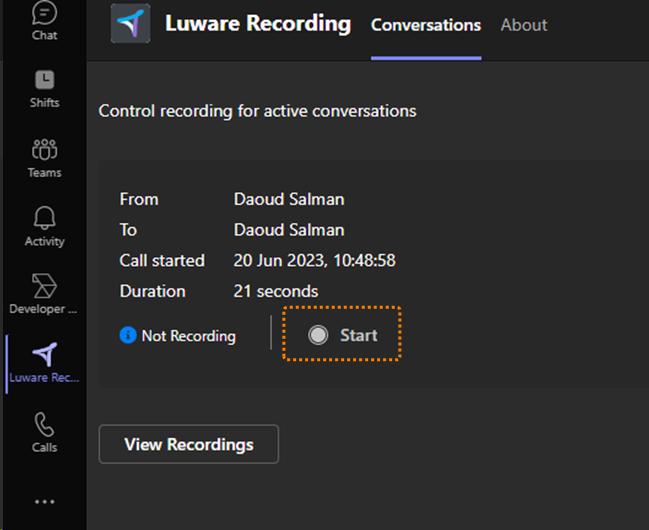
☝ No Conversations Shown
If no active conversations are detected, no calls will appear in the application. The list only populates when the user has an ongoing Teams call that Luware Recording is aware of.
Users can also click View Recordings to open the Luware Recording web portal in a new browser window and review their past recordings.
