- As Tenant Admin, log into your Azure Portal.
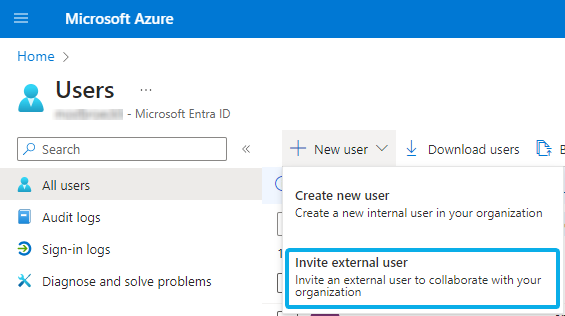
- Go to Users > New Users and select “Invite external User”.
-
Invite both guest users 1&2 on your tenant. Add each of the previously copied email addresses (e.g. svr_nimbus_guest@onmicrosoft.com) and click Invite.
⮑ A standard Azure invite mail will be sent out to Luware.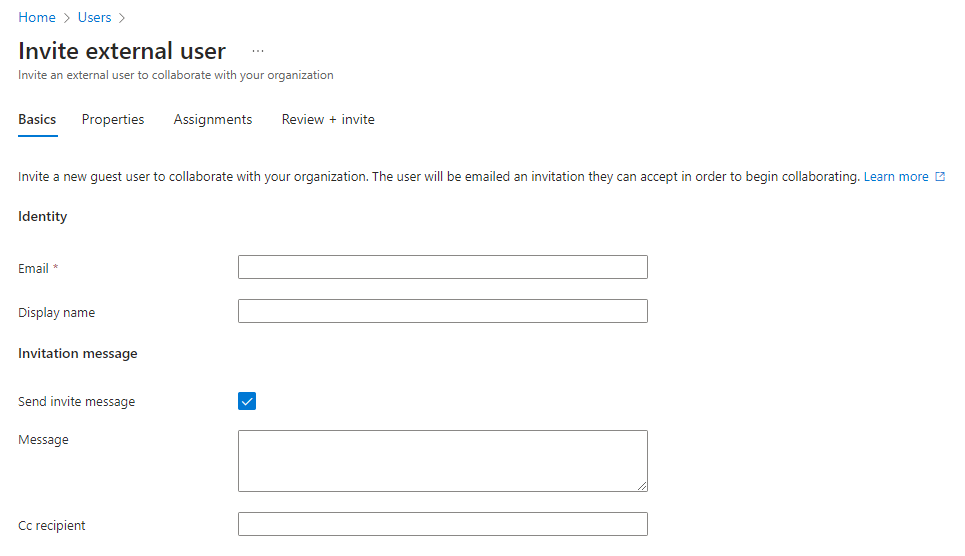
☝ Note that MFA (Multi Factor Authentication) needs to be disabled for these users. Otherwise, this feature will not work as the guest users cannot sign in to your tenant. - Let your Customer Success Specialist know that the guest users have been invited.
-
Please wait while steps are done in the background:
- Luware cloud operations team must accept the guest invitations. Please allow for some time for this to happen.
- Once successful, the "Account is not added as guest" message should disappear on your side in the Nimbus admin UI.
- If this is not the case, please get in contact with the Luware support.
Table of Contents