Why enforce mailbox access policies?
When you run the Provisioning via Microsoft PowerShell , the script tries to get the consent for 2 additional Mail-related Nimbus App Permissions on the Luware Nimbus Application:
Mail.ReadWrite
Mail.Send
☝This grants Nimbus access on ALL mailboxes (currently available) which may be desirable if you want to still set-up and test the feature. After that however you may want to restrict the access only to selected Mailboxes by creating an Application Access Policy.
🔎 You can find further information on this Microsoft Website.
✅ Detail steps to follow will be described in the following.
Create a MailUniversalSecurity Group
💡Tip: A MailUniversalSecurityGroup makes managing additional Mailboxes easier in future. In the following example we're using a group for the access policy.
As a Exchange Admin:
- Go to your Exchange Admin Center.
- Go to the Recipients section and select Groups. Click on Add a new group.
- On the Choose group type page select “Mail-enabled security”
- Fill in Name (e.g "Luware Nimbus Service Mailboxes) and add a description of your choice.
- Select the Group Owners.
- Select the Mailboxes, which should be part of this restriction.
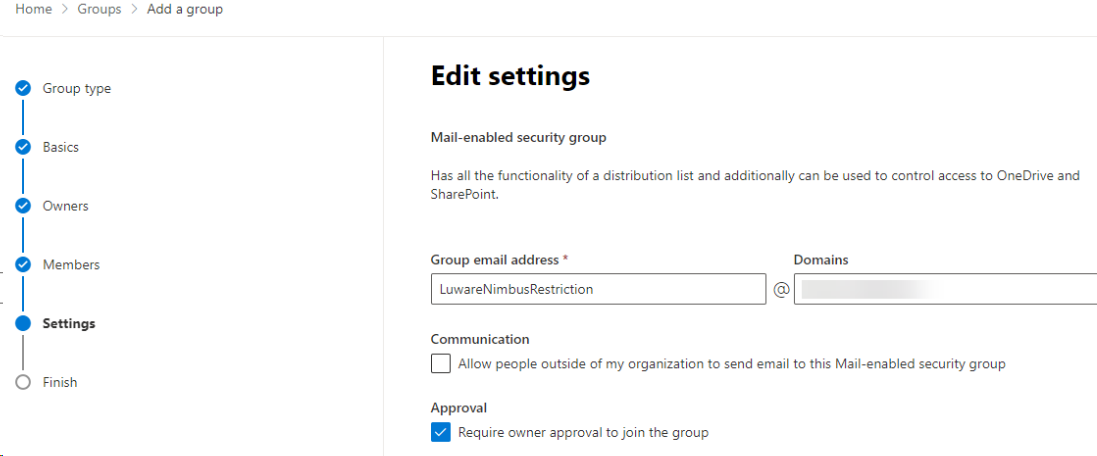
- Select an Email address and select the settings you would like to enforce.
Connect via PowerShell to Exchange Online
✅To connect to Exchange Online using PowerShell you need to install the module “Exchange Online Management”. If the module is already installed, you can typically skip this step and run Connect-ExchangeOnline (Step 4) without manually loading the module first.
- Open Powershell as Admin mode.
- You will have to run the Install and Import commandlet:
install-module ExchangeOnlineManagement - As the next step, you have to connect with Exchange Online.

- Enter:
Connect-ExchangeOnline -UserPrincipalName <UPN>
☝ Replace “<UPN>” by the UPN of an Exchange administrator.
⮑ You are now connected to Exchange Online
ApplicationAccessPolicy Restriction Steps
In order to restrict the Luware Nimbus App access only to selected Mailboxes perform the following steps:
- Ensure you are connected to Exchange Online via PowerShell.
- Identify a Mail-enabled security group to restrict the app's access to.
- Depending on the Cluster you test this on, retrieve the Nimbus App ID from the reference below.
Nimbus ACS / APP ID
Click to show…
Cluster Unique ID Innovator Cluster Luware Nimbus Innovator APP ID 953900f0-0e95-4116-80bf-de894301fa29 Luware Nimbus Innovator ACS ID fa5a344d-cfe3-4765-b478-dc6551f153e2 Production Cluster Luware Nimbus Production APP ID af85ba37-5817-43d6-82e7-09004f08664e Luware Nimbus Production ACS ID 0ec02475-4b29-4cb5-8338-aa5623d301a2 Nimbus ACS / APP IDs - Run
New-ApplicationAccessPolicywith the following parameters:
| -AccessRight |
The AccessRight parameter specifies the restriction type that you want to assign in the application access policy. Valid values are:
|
|---|---|
| -AppId |
The Identity parameter specifies the GUID of the apps to include in the policy. To find the GUID value of an app, run the command: |
| -PolicyScopeGroupID |
The PolicyScopeGroupID parameter specifies the recipient to define in the policy. Valid recipient types are security principals in Exchange Online (users or groups that can have permissions assigned to them).
For example:
💡Tip: We recommend the MailUniversalSecurityGroup option in order to add additional Mailboxes in future. See above how to create this group, if you haven't done so already. |
Full command:
Once your parameters are set, run the New-ApplicationAccessPolicy as follows:
New-ApplicationAccessPolicy -AccessRight RestrictAccess -AppId "<Luware Nimbus AppId>" -PolicyScopeGroupId “<your MailUniversalSecurityGroup>” -Description "<your Description>"
You can test your ApplicationAccessPolicy with the following commandlet:
test-ApplicationAccessPolicy -AppID <NimbusAppID>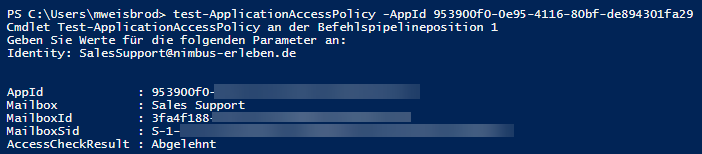
Note: Policy Limitation
☝ You can only create a limited number of policies in your organization, based on a fixed amount of space. If your organization runs out of space for these policies, you'll see the error: "The total size of App Access Policies exceeded the limit."