The Nimbus Task Queue and Distribution algorithm can also distribute Instant Messaging (IM) modality tasks to users. Such tasks are created as a customer uses Interact website widgets or sends messages via WhatsApp to a service. By the use of specific IM Workflows, an IM task is fed into the queue of the service which has the modality enabled in their Service Settings.
Integration Methods
Instant Messaging can be be set up for user and for services, so either distributing tasks directly or via service workflow. Prior integration setup is required before customer messages can be fed into the Nimbus environment.
INC Instant Messaging Preconditions
PRECONDITIONS
✅ Instant Messaging (IM) is a user modality (channel of communication) to be enabled for your tenant. This is done during initial setup with your Luware Customer Success representative and in tandem with License Management for your users and services.
✅IM Integration paths
✅IM Integration paths
INC Instant Messaging Integration Channels
There are currently three integration channels to route Instant Messages to Nimbus users: via Luware Interact (Website embed widget), WhatsApp, and SMS.
| Channel | Channel Description | Related Pages |
| via Interact |
|
✅Getting started: 🔎Additional sources: |
 | ||
| via WhatsApp |
|
✅Getting started: 🔎Additional sources:
|
| via SMS/RCS |
|
✅Getting started: 🔎Additional sources:
|
✅User access
✅User access
- Tenant Admin rights are needed to enable Modalities Tenant Settings and apply related licenses via Licenses Tenant Settings.
- Additional roles and permissions (e.g. external business and service accounts) may be involved as per integration scenario → See specific use cases below.
- Once enabled, regular Nimbus users will access the features as described per Instant Message Handling.
✅Nimbus licensing
✅Nimbus service and user licensing
Instant Messaging can be enabled and licensed per user or service. The table below outlines which licenses are required depending on your usage scenario:
| For | Applicable Licenses | Your usage scenario | Configuration areas |
| Service |
Contact Center license |
|
|
|
Interact Service (optional) |
|
|
|
| User | Instant Messaging modality license |
|
|
|
Interact User (optional) |
|
|
💡Licensing examples
-
Your Service A shall be reachable via WhatsApp - you need:
- The Contact Center service license → Enables the "WhatsApp" channel and according workflow options in the Modalities Service Settings in order to distribute the Instant Messaging tasks.
- At least one user as member of this service, with the Instant Messaging modality enabled to receive the tasks.
-
Your Service B shall be reachable via Website - you need:
- The Contact Center license on the service → Enables the “Interact” channel and according workflow options in the Modalities Service Settings in order to distribute the Instant Messaging tasks.
- The Interact service addon → Enables the “Interact” tab for configuration of the integration and restrictions.
- At least one user as member of this service, with the Instant Messaging modality enabled to receive the tasks.
💡As long as the user should not be directly reachable, no extra user Interact license is required. → see next point.
-
Your User Y shall be directly reachable via Website (and is not necessarily part of Service B)
- The Interact User license → Enables the “Interact” tab for configuration of integration and restrictions.
- Use this method if you want the user to be directly exposed on a website instead of going via service workflows.
Attachments and Allowed File Types
As Nimbus users engage with customers, the need for sending and receiving file attachments may arise. Nimbus allows to manage this flow of data via Allowed File Type, which in turn are applied individually per the service's respective Data Privacy Service Settings. The filetypes can be restricted for either inbound / outbound direction in both size and MIME Type.
| Nimbus Admin Point of view: Defining Allowed File Types as a config item which can be re-used across multiple Nimbus services. | Nimbus User point of view: Showcase how the (Dis)allowed file types prevent sending or receiving of attachments. |
 |
  |
Example: IM Task Creation
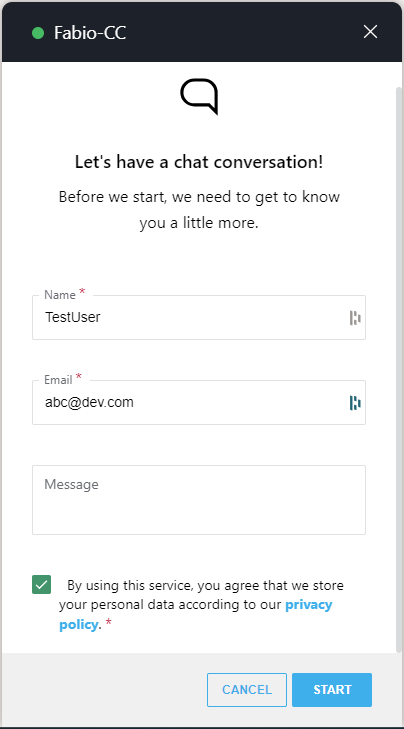
The following refers to the scenario when Instant Messages are received and distributed by a service via Interact. The customer on the website needs to provide a display name and an email address, and accept the privacy policy. Optionally, the customer can provide an initial message as well.
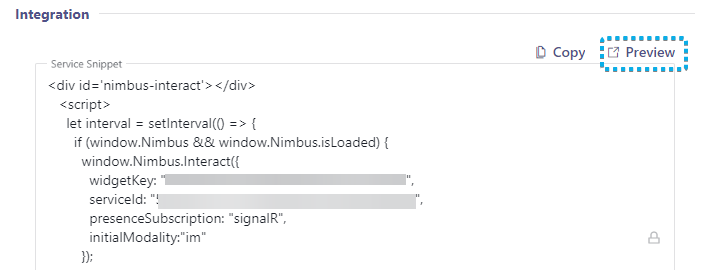
For quick verification or testing purposes, the Preview page can be used. This can be found on top of the code box on the user/services interact tab. This applies for users (users can be exposed and enabled as well) and services.
🔍 Refer to Use Case - Setting Up Interact for detailed steps on how to set up Interact.
IM Task Distribution
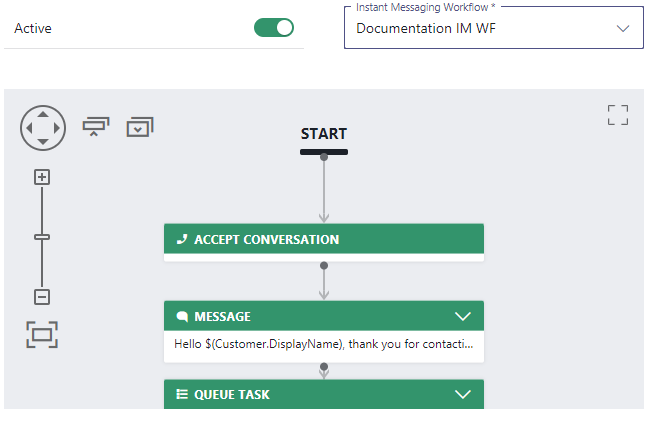
Incoming Instant Messaging tasks are distributed according to Instant Messaging Workflow definitions, e.g. to allow to:
- Introduce artificial delays in the Workflow itself, e.g. to run background Flow Actions to run and retrieve the necessary context.
- Perform a simple “Queue” and task distribution or to check on task positions and act accordingly, e.g. by transferring the task to another service.
- Perform other Workflow Activities related to the task, such as checking in further customer inputs, looking up data or changing the task priority.
IM Task Handling
Nimbus users remain in their known MS Teams environment, get notifications via in Attendant Console or Assistant and can leverage the Nimbus UI (e.g. My Sessions) to directly chat with the customer. The chatroom and related reporting session is then steered by a Nimbus bot.
🔍 For information about IM task handling, refer to Instant Message Handling.
Known Limitations
INC Instant Messaging Limitations
🔎INSTANT MESSAGING DESIGN NOTES
💡The following notes are “by design”. They describe behavior of message protocols which cannot be circumvented or fully mitigated by Nimbus.
☝Data visibility:
- Visible Customer Inputs: During an ongoing Instant Messaging session, any messages that customer enters into the chat will be visible to the Nimbus user, including information entered during Workflow Activities such as “Collect Information”.
- Attachments sent by either customer or user are subject to the Instant Messaging integration vendor (e.g. WhatsApp, Twilio) and their respective data handling and retention policies. If you are uncertain about handling certain media types via Instant Messages, consider restricting the Allowed File Types within your Data Privacy Service Settings.
☝Delay consideration for Power Automate (e.g. preferred user scenarios):
- Note that – while Instant Messaging tasks can be routed with minimal delay – the measured roundtrip time of e.g. setting a preferred user via Power Automate Flow Action in many cases lies above 1 second.
→ When you want to leverage “Preferred User Routing” in your Distribution Policies we recommend to add a delay in your workflow (e.g. via “Message” or “Delay” Conversation Handling Activity) before handing the task over to your “Queue”.
☝Maximum message length is 1600 characters.1
- Twilio enforces a maximum message length of 1600 characters. Additional Parameters in your (automated) messages count towards this limit.
- In the UI (e.g. My Sessions, Nimbus will detect the integration channel (e.g. SMS, RCS, WhatsApp) and display limits and warning messages accordingly.
- In Workflows, e.g. a “Message” Conversation Handling Activity Nimbus cannot anticipate the incoming integration channel proactively. If the length would be exceeded (e.g. a resolved Parameter leading to a long message), the activity will be skipped.
☝SMS length is impacted by character encoding2. Please keep the length in mind:
- Please note that when you send a long message (via workflow or Nimbus UI), the customer generally receives multiple SMS at the same time. This could be considered as spam - on top of generating additional cost for the involved actors.
- The Nimbus UI will show the amount of SMS generated by a chat response. The amount of remaining characters and SMS will be adjusted when you change the encoding (e.g. by using emoticons).
💡Recommendation: If you intend to handle multiple IM channels via the same workflow and service, keep messages (including resolved Parameters) short in order to not exceed the most restrictive limits.
1Also refer to Twilio' documentation on maximum message length.
2Also refer to Twilio's documentation on SMS character limits and instruct your users accordingly before sending out long message chains.
KNOWN INSTANT MESSAGING LIMITATIONS
💡The following limitations are currently known to the Nimbus development team. We are actively working on improvements.
General limitations
- Supervision is currently not supported for Instant Messaging sessions.
-
Instant Messaging modality support for Workflow Activities is currently limited. Workflows with incompatible activities cannot be selected in the service settings.
-
Unsupported workflow activities: If a workflow is edited in post using unsupported Workflow Activities, the Nimbus Reporting session will terminate with a “failed” reporting outcome.
Show list of supported WF activities
INC Instant Messaging supported WF activities
Currently the following Workflow activities are supported for Instant Messaging workflows:
▼Workflow Activity | Chat Integration path via ►
Interact
WhatsApp
SMS
Conversation Handling
Accept
✅
✅
✅
Announcement
❌
❌
❌
Collect Information
✅
✅
✅
Delay
✅
✅
✅
Disconnect
✅
✅
✅
Disconnect as Handled
❌
❌
❌
Forward
❌
❌
❌
Input Customer
✅
✅
✅
Input Customer (Advanced)
❌
❌
❌
Mark as Handled
❌
❌
❌
Message
✅
✅
✅
Play Music
❌
❌
❌
Reply
❌
❌
❌
Save to Parameter
✅
✅
✅
Standby Duty
❌
❌
❌
Transfer
✅ (to service only)
✅ (to service only)
✅ (to service only)
Virtual User
❌
❌
❌
Voice Message
❌
❌
❌
Web Request
✅
✅
✅
Check
Availability-based Routing
✅
✅
✅
Check Opening Hours
✅
✅
✅
Check Parameter
✅
✅
✅
Get Available Users
✅
✅
✅
Get Queue Position
✅
✅
✅
Wait for Parameter
❌
❌
❌
Queue
Cancel Task
✅
✅
✅
Check Task
✅
✅
✅
Distribution Priority
✅
✅
✅
Queue
❌
❌
❌
Queue Task
✅
✅
✅
💡General Note: If a workflow is edited in post using unsupported activities, the Nimbus Reporting session will terminate with a “failed” outcome.
-
Unsupported workflow activities: If a workflow is edited in post using unsupported Workflow Activities, the Nimbus Reporting session will terminate with a “failed” reporting outcome.
-
Reporting: IM Sessions are currently not differentiated by the Integration method used (either WhatsApp or Interact).
→ A workaround is to use dedicated IM services for either integration method.
Interact specific limitations
- Directly contacting a user via Interact will block a user depending on the incoming modality. The user stays “available” during an Instant Messaging session because a chat is non-blocking, but Audio/Video will result in the user being “not available” because they are in a blocking call.
- Nimbus Reporting Model - There isn't a service nor user session reported when a user is directly contacted.
WhatsApp specific limitations
- Provider Connectors > Twilio - Currently the integration works with “United States” region only.
-
Chat functionality is currently limited to the essential only.
- Message editing & deletion, reactions and replies are not supported and will not be supported (Twilio API limitation)
SMS / RCS specific limitations
SMS/RCS specific limitations
- Provider Connectors > Twilio - Currently the integration works with “United States” region only.