Nimbus allows for AI-driven features that help improve your overall service performance. Scenarios and features involve:
-
Companion:
- AI-driven Transcription on customer-service user interactions and post-call Summarization functions.
- Automated Tags and Codes suggestions based on the context detected during the call.
- Virtual Assistants: Live Captioning of spoken dialogue.
-
Virtual Users:
- AI-driven Transcription of customer-AI user interactions.
- For both inbound and outbound audio calls, including Call On Behalf and Scheduled Tasks.
PRECONDITIONS: TENANT ADMIN CONSENT
✅Companion, Virtual Users and related Transcription features each require individual Tenant Administrator consent. This consent needs to be granted once in the Data Privacy Tenant Settings > Artificial Intelligence section by individually enabling the use of AI-driven features.
☝️Without the consent given, AI features described below will be inactive for all services. A warning will inform about

🔎DATA STORAGE SETTINGS
Note that there are data storage toggles in the features below.
- While enabled (Default): Data is stored or 30 days1. Power Automate Connector > Trigger Events and Flow Actions for Companion and Virtual User can be leveraged to retrieve the data.
- While disabled: Data will be cached and (when optionally enabled) shown in the Nimbus UI for 1 hour1. Caching is done to allow retrieval and storage of the transcription data via Nimbus Power Automate Connector.

1🔎Any data not stored into external systems will be discarded after the retention period and will not show in historical listings anymore (e.g. Sessions List, My Sessions). Data storage retention settings apply equally to inbound and outbound calls. For more details on data storage and retention, refer to the Nimbus Security Whitepapers in the Documents section
Companion Features
Precondition: Speech Recognizer
✅ All Transcription or Live Captioning features described on this page requires prior setup of a Speech Recognizer in the Nimbus Configuration.

Speech recognizers are preconfigured Nimbus (Administration) items that point to a 3rd party service for voice processing. A Speech Recognizer is required to specify the language and engine used by any transcription features mentioned below.
Please use the tabs below to navigate:
Transcription
Transcription
INC Transcription Preconditions
PRECONDITIONS
✅Related Admin Use Case: Refer to Use Case - Setting Up Transcription for detailed step-by-step instructions.
Audio / Video Modality: AI driven Transcription, Summarization, Live captioning, Codes & Tags suggestions are available for both inbound and outbound audio calls.
Nimbus service and user licensing
🔎Transcription features have service and user requirements. These requirements apply for either mid-session Live Caption or post-session Transcription / Summarization features.
|
Service requirements Enterprise Routing Contact Center |
|
|
Service User requirements Companion |
✅ The service requirements needs to be met. ✅ Additional steps are as follows:
|
|
Virtual User transcription Virtual Users |
✅ The service requirements needs to be met. ✅ Additional steps are as follows:
|
Speech Services (Speech Recognizer)
🔎Features described in the following use “Speech Services” (in Nimbus configured as Speech Recognizers) provided by 3rd party vendors. To offer our customers both convenience and flexibility, you may pick between a Nimbus-native implementation and Azure speech services. Differences are explained in the following:
INC Speech Recognizer service comparison
| Nimbus AI Services | Azure AI Services | |
|---|---|---|
| Benefits |
|
|
| Challenges |
|
|
| Setup |
|
|
Power Automate Connector
🔎Conditional step: The Nimbus Power Automate Connector can extract Transcription/Summarization data from customer sessions. There are separate Trigger Events and Flow Actions for Virtual User (automated AI Agents) and Companion (while assisting human Nimbus users).
To retrieve and handle the data, the following steps need to be performed by an administrator
| Transcription setup for ► |
Companion (Human) Service Agents |
Virtual Users (AI) Service Agents |
|---|---|---|
| Mandatory steps |
|
|
| Optional steps |
|
|
| Related pages |
INC Azure Billing Transcription
AZURE BILLING
The usage of the Transcription feature will cause additional monthly ACS costs. The costs are determined by Microsoft. Also see https://azure.microsoft.com/en-us/pricing/details/cognitive-services/speech-services/.
- Before enabling the Transcription feature, get in touch with your Luware Customer Success specialist to discuss terms, usage scenarios and necessary setup procedures.
- Please note that Nimbus and Transcription support does not cover pricing discussions or make recommendations based on Microsoft Azure infrastructure.
When active, the Transcription feature transcribes call contents between customer and Nimbus users (Agents) using Voice-to-Text capabilities. It improves quality assurance and increases the efficiency of call processing, for example making it easier to summarize past customer interactions and possibly transfer them to a CRM system for easier search and later analysis. Transcription is available for both inbound and outbound audio calls.
Once a call has ended, a Voice Transcription is generated in the background, by leveraging the Nimbus Power Automate Connector > "Companion" Trigger Events and Flow Actions. You can then forward the generated transcription to any target, e.g. by wrapping it into an Adaptive Card as Teams chat message or via Email.

|
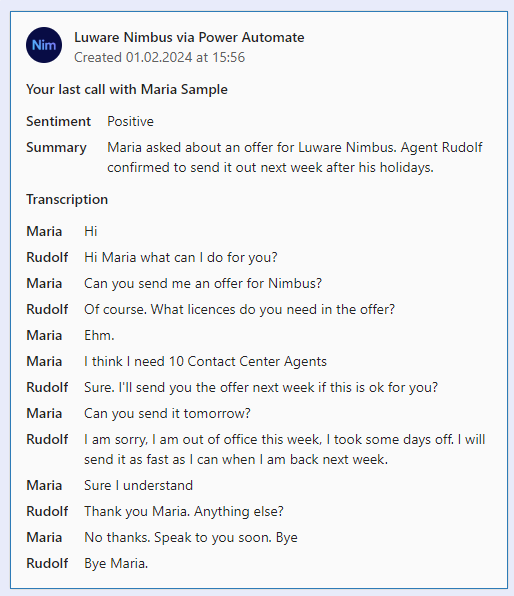 |
Optionally you can also show the transcription in My Sessions, allowing users to have a direct written record of previous conversations with customers. Transcriptions for concluded outbound calls are also available in the historical sessions view in My Sessions.

Summarization
Summarization
Summarization
✅ PRECONDITIONS
Companion - Summarization is an optional feature as part of Transcription:
- The Transcription feature must be enabled on the Companion Service Settings, as the Summarization is generated from it.
- Companion Service Settings also steer the individual feature availability to users, as well as the data storage retention time.
- Each user accessing the feature requires a Companion License, applied via General User Settings.
Virtual User - Summarization follows the same principle, but with different preconditions:
- Transcription and Summarization are both enabled in the AI Service Settings section, which also steers the data storage retention time.
- A Companion license is not involved. Instead, a Virtual User license and Virtual User data privacy consent on the tenant are required instead.
The Nimbus Companion integrates AI summarization as part of a broader suite of Transcription features, aimed at improving service performance and agent efficiency. During a call - when Live Captioning is enabled - Nimbus transcribes the conversation in real time. After the call, the transcript is processed by an AI service to generate a summary with the following aspects:
| Aspect | Description |
|---|---|
| Title | A title generated from Call Direction, Service, and User that accepted the task. |
| Issue | Shortened problem description by the Customer. |
| Resolution | Summary of how the issue was resolved. |
| Recap | A brief paragraph summarizing the interaction. |
| Narrative | Detailed call notes or chat summary of the entire Customer/User Interaction. |
Summarization Outputs
Via My Sessions: Summarization outputs can be presented to the agent via My Sessions > Companion widget.
💡All aspects shown within the Companion Widget > Summarization can be hovered over and copied.
✅ Precondition: The “Companion” widget itself needs to be enabled in the Extensions Service Settings in order to be shown to users.
Via Nimbus Power Automate Connector: Administrators also have the possibility to flexibly retrieve and store Summarization outputs using Companion Flow Actions and the User/Service SessionID. This can be useful to keep a record of calls, e.g. within a CRM or long-term data storage and evaluation platform.

Virtual User Summarization
Virtual Users can be summarized as well, generating one summary per Virtual User session. Once that session has ended and its transcript is complete. The summary structure follows the aspects described above, so a flow built for Companion summaries can be reused.
☝️Note: Virtual User summaries are not shown in the Nimbus UI. As no human agent takes the call, there is no My Sessions entry and no Companion widget. Summaries are retrieved exclusively through the Nimbus Power Automate Connector — using the “Virtual User” Trigger Events and Flow Actions, which document the exact events and parameters.
They must be handled within the configured retention window (1 hour or 30 days), otherwise the data is discarded. If the customer denies transcription consent, no transcript is stored — and therefore no summary is created.
Known Limitations
Summarization relies on the Transcription feature and therefore shares the same design limitations.
INC Transcription Limitations
☝️ KNOWN TRANSCRIPTION & SUMMARIZATION LIMITATIONS
💡We are actively working on further improvements to the following limitations:
- Transcription data is not part of service/user transfers. Data is kept within the current customer/user session. This capability will be provided with an upcoming release.
- Virtual User Reporting: Virtual User sessions and their transcripts will be included in Virtual User session reporting as part of a separate, upcoming capability. This is not available yet.
- Power Automate Connector: New “Virtual User” data fields in the Trigger Events / Flow Action may still be erroneously labeled as “Companion”. The terminology will be corrected in a separate update. The Virtual User / Companion connectors separate their data as intended.
🔎 BY DESIGN
💡The following points are not limitations, but important to note:
-
Transcription Feature availability:
- Transcription is a prerequisite to Live Captioning, Summarization, AI suggested Codes & Tags
- Not for Copilot / Direct Line 3.0 Virtual Users. Transcription features apply Virtual Users built on GPT Realtime bots only.
- Transcription relies on external services and APIs. When the feature is disabled or unavailable (e.g. throttling or service impediments) info messages are shown in the frontend UI widget. Nimbus task handling and user-customer interactions themselves are not affected by this and will continue normally.
-
Virtual Users:
- Not for Copilot / Direct Line 3.0. Transcription features apply Virtual Users built on GPT Realtime bots only.
- Post-session only. The transcript is produced after the session ends; there is no live/real-time transcription during a call.
- No (default) My Sessions view. Virtual User transcriptions do not appear on the Nimbus UI — they are consumed through Power Automate.
- No audio storage. Only the generated transcription data is processed in Power Automate. Audio recordings are discarded after automated processing.
-
Transcription scope:
- 3rd-party participants: Third parties, consultants and call conference attendees are not part of the transcribed content. Only the transcription data between Nimbus users / AI agents and the calling customer is kept.
- Supervision - As long as Supervisors remain in Listen or Whisper mode during a conversation, their voice is not being transcribed. Only during ”Barge In" they are part of the conversation and transcription is active.
- Summarization items generated from the Transcription might be missing when there is not enough data to draw from.
Codes Suggestion
Codes Suggestion
✅ Precondition: Transcription is required to be enabled and a Transcriber set in order to use Codes Suggestion.
The Codes Suggestion feature provides you suggestions in My Sessions after a call is finished. If you haven't added codes to the session yet, Companion automatically suggests them. In case you have already added your codes, you need to click on the suggest icon to see and apply code suggestions. Code suggestions are also available for concluded outbound calls in the historical sessions view.

💡When configuring Codes in your Configuration, you can add the context related to this code in the field to support Nimbus Companion in suggesting codes.
💡Codes can also be assigned fully automatically, without needing to click the suggest icon — see the Auto-assign with AI tab below.
Tags Suggestion
Tags Suggestion
✅ Precondition: Transcription is required to be enabled and a Transcriber set in order to use Tags Suggestion.
The Tags Suggestion feature provides you up to 5 tag suggestions in My Sessions, prioritizing tags from the list of already assigned tags (to Service Sessions). If no previously used tags are identified, Companion suggests new tags instead. After a call is finished and you haven't added tags to the session yet, tags suggestions are shown. You can either select specific tags or apply them all. If you have already selected your own tags before, they don't get overwritten – in this case, you need to click on the suggest icon to see and apply tags suggestions. Tag suggestions are also available for concluded outbound calls in the historical sessions view.
A Language selector lets you choose the language used for auto-generated Tags. Available languages: Danish, German, English, Spanish, French, Italian, Dutch, or Swedish (default: English).

💡 Tags can also be assigned fully automatically, without needing to click the suggest icon — see the Auto-assign with AI tab below.
Auto-assign with AI
Auto-assign with AI
✅ Precondition: Requires Codes Suggestion and/or Tags Suggestion to be active on the service. Tags can only be auto-assigned if Codes auto-assignment is enabled, and if Codes have been added on the Extensions Service Settings page.
Instead of only suggesting Codes and Tags for you to apply manually, Nimbus Companion can assign them fully automatically. You can enable this via Codes and/or Tags under Auto-assign with AI. Companion assigns matching Codes and up to 5 Tags on its own once an 80% confidence threshold is reached.
The Auto-assign after (min) field defines how long Companion waits after a call ends before assigning Codes and Tags (default: 5 min). This delay applies to both Codes and Tags.

Auto-assigned Codes and Tags appear on the My Sessions page the same way as manually or suggestion-based ones, and flow into reporting identically.
💡Good to know:
- Auto-assignment applies only to audio interactions handled by a human agent, not to bot-handled sessions, and not for other modalities like Chat, Email, or External Task.
- If you have already manually assigned a Code or Tag before Companion completes its auto-assignment, your manual entry is never overwritten.
- If Transcription fails, confidence is too low, or Companion is unavailable, the interaction is simply left unclassified. You can still classify manually, and call wrap-up is never blocked.
- There is no "undo" for auto-assigned Codes or Tags.
- If you change the Tags Suggestion language, new tag suggestions follow the newly configured language. Where relevant, Companion may still recommend reusing an existing tag from the previous language configuration instead of creating a duplicate.
- The Auto-assign timer starts immediately after the User Session ends, not after ACW ends. Keep this in mind when configuring the Auto-assign time after (min) value.
- Once the Auto-assign time (min) has elapsed, Codes and Tags are saved automatically wherever the prerequisites are met. However, you need to refresh the page to see the saved conversation attributes. This behavior will be improved in a future release.
Companion Follow-Up Actions
For Service Owners
✅Enabling the feature visibility:
- For Companion Transcription and Summarization features to be visible to your users, the "Companion" widget must be enabled via Extensions Service Settings > Widgets. Of course you can opt to not show these features, while Companion features still run in the background.
💡Workflows can be set up for customers to opt out of transcription via the Record Consent workflow activity. When a customer opts out, transcription will not be generated for that session..
💡Please note that Transcription-related features only apply for new sessions, not retroactively on past sessions. - Once enabled, you can inform your Service team, so they can pay attention in their My Sessions view accordingly.
For Administrators
✅Power Automate alternative for Companion data: You can also leverage the Nimbus Power Automate Connector by using "Companion" related Trigger Events and Flow Actions, as described in our example Use Case - Analyzing a Transcript. While adding complexity in configuration, the advantage is that you have more fine-tuned control over the transcription data, allowing you to process or store it externally, or opt to showcase it to additional users via the use of Adaptive Cards. The Power Automate triggers and actions also fire for outbound conversations.
Virtual Assistants
Live Captioning
Live Captioning
✅ Precondition: Transcription is required to be enabled in order to use Live Caption.
INC Public Preview Beta Feature

This feature is in PREVIEW and may not yet be available to all customers. Functionality, scope and design may change considerably.
The Live Caption feature converts ongoing call participant voices directly into text, using Voice-to-Text capabilities. Contents are displayed live on the My Sessions page. Live Captioning is also available for outbound audio calls.

Virtual Users
Transcription
Transcription
INC Transcription Preconditions
PRECONDITIONS
✅Related Admin Use Case: Refer to Use Case - Setting Up Transcription for detailed step-by-step instructions.
Audio / Video Modality: AI driven Transcription, Summarization, Live captioning, Codes & Tags suggestions are available for both inbound and outbound audio calls.
Nimbus service and user licensing
🔎Transcription features have service and user requirements. These requirements apply for either mid-session Live Caption or post-session Transcription / Summarization features.
|
Service requirements Enterprise Routing Contact Center |
|
|
Service User requirements Companion |
✅ The service requirements needs to be met. ✅ Additional steps are as follows:
|
|
Virtual User transcription Virtual Users |
✅ The service requirements needs to be met. ✅ Additional steps are as follows:
|
Speech Services (Speech Recognizer)
🔎Features described in the following use “Speech Services” (in Nimbus configured as Speech Recognizers) provided by 3rd party vendors. To offer our customers both convenience and flexibility, you may pick between a Nimbus-native implementation and Azure speech services. Differences are explained in the following:
INC Speech Recognizer service comparison
| Nimbus AI Services | Azure AI Services | |
|---|---|---|
| Benefits |
|
|
| Challenges |
|
|
| Setup |
|
|
Power Automate Connector
🔎Conditional step: The Nimbus Power Automate Connector can extract Transcription/Summarization data from customer sessions. There are separate Trigger Events and Flow Actions for Virtual User (automated AI Agents) and Companion (while assisting human Nimbus users).
To retrieve and handle the data, the following steps need to be performed by an administrator
| Transcription setup for ► |
Companion (Human) Service Agents |
Virtual Users (AI) Service Agents |
|---|---|---|
| Mandatory steps |
|
|
| Optional steps |
|
|
| Related pages |
When active, the Transcription feature transcribes call contents between customer and Virtual Users using Voice-to-Text capabilities. It improves quality assurance and increases the efficiency of call processing, for example making it easier to summarize past customer interactions and possibly transfer them to a CRM system for easier search and later analysis. Transcription is available for both inbound and outbound audio calls.
Once a call has ended, a Voice Transcription is generated in the background, by leveraging the Nimbus Power Automate Connector > "Virtual User" Trigger Events and Flow Actions. You can use them to retrieve the transcription data from each Virtual User Interaction, e.g. to store within an external CRM, database or chat message for later quality assurance.
💡 Transcription is also the basis for Summarization. Once Transcription is active you can additionally let Nimbus generate a short, structured recap of each Virtual User session → see the Summarization tab.
 |
 |
Summarization
Summarization
✅ Precondition: Transcription is required to be enabled in order to use Summarization.
When active, the Summarization feature automatically condenses the conversation between the customer and a Virtual User into a short, structured recap — following the same Summarization structure already described for → Companion. The summary is generated in the background after the Virtual User session has ended, so it does not affect the live (follow-up or transfer-related) conversation.
Summaries capture the key outcome of the interaction (e.g. the customer's issue, what the Virtual User did, and how the session concluded). They are made available via the Nimbus Power Automate Connector so you can forward them into a CRM record, a case or ticket, a QA workflow, a Teams message or an email.
When an interaction is escalated from a Virtual User to a human agent, the summary can also be handed over directly within the Nimbus UI: a "Virtual User - Summary" tab in the Companion widget shows it by default once the agent picks up the call, and the same summary is shown in the Attendant Console under Companion > Transcription during a live call. This handover is controlled per service via the new "My Sessions" toggle under AI Service Settings > Virtual Users > Summarization.
If a Service Session involves multiple Virtual User interactions (e.g. the customer is transferred between several bots before reaching a human agent), only the summary of the last Virtual User is shown to the agent — not a combined summary, and not a fallback to an earlier one. This also applies to consent: the last Virtual User's consent status decides what's shown, regardless of what earlier Virtual Users in the same session had.
- Both Virtual Users have consent: the agent sees the summary of the last Virtual User.
- First Virtual User has consent, second does not: the agent sees “Summarization not available for this session. No consent granted.”, even though the first Virtual User did have consent.
✅ Follow-Up: Retrieving the Summary
Whether or not the "My Sessions" handover toggle is enabled, summaries can always be retrieved externally via the Nimbus Power Automate Connector:
- Trigger Events → “When a Virtual User has an update”, using the Virtual User Transcription Summarization Ready or Service Session Terminated event.
- Flow Actions → “Get Virtual User Data”, with Data Type set to Summarization.
💡A summary is only ever shown in the UI when the customer has consented to Virtual User transcription and Virtual User Summarization is configured on the service. If it isn't ready yet at pickup, agents see "Generating Virtual User summary" until it resolves. Where no summary is available (no consent, no summarization configured, or no storage configured), agents see a clear info message explaining why instead of a summary.
General Notes
Known Limitations
INC Transcription Limitations
☝️ KNOWN TRANSCRIPTION & SUMMARIZATION LIMITATIONS
💡We are actively working on further improvements to the following limitations:
- Transcription data is not part of service/user transfers. Data is kept within the current customer/user session. This capability will be provided with an upcoming release.
- Virtual User Reporting: Virtual User sessions and their transcripts will be included in Virtual User session reporting as part of a separate, upcoming capability. This is not available yet.
- Power Automate Connector: New “Virtual User” data fields in the Trigger Events / Flow Action may still be erroneously labeled as “Companion”. The terminology will be corrected in a separate update. The Virtual User / Companion connectors separate their data as intended.
🔎 BY DESIGN
💡The following points are not limitations, but important to note:
-
Transcription Feature availability:
- Transcription is a prerequisite to Live Captioning, Summarization, AI suggested Codes & Tags
- Not for Copilot / Direct Line 3.0 Virtual Users. Transcription features apply Virtual Users built on GPT Realtime bots only.
- Transcription relies on external services and APIs. When the feature is disabled or unavailable (e.g. throttling or service impediments) info messages are shown in the frontend UI widget. Nimbus task handling and user-customer interactions themselves are not affected by this and will continue normally.
-
Virtual Users:
- Not for Copilot / Direct Line 3.0. Transcription features apply Virtual Users built on GPT Realtime bots only.
- Post-session only. The transcript is produced after the session ends; there is no live/real-time transcription during a call.
- No (default) My Sessions view. Virtual User transcriptions do not appear on the Nimbus UI — they are consumed through Power Automate.
- No audio storage. Only the generated transcription data is processed in Power Automate. Audio recordings are discarded after automated processing.
-
Transcription scope:
- 3rd-party participants: Third parties, consultants and call conference attendees are not part of the transcribed content. Only the transcription data between Nimbus users / AI agents and the calling customer is kept.
- Supervision - As long as Supervisors remain in Listen or Whisper mode during a conversation, their voice is not being transcribed. Only during ”Barge In" they are part of the conversation and transcription is active.
- Summarization items generated from the Transcription might be missing when there is not enough data to draw from.