The Modalities tab controls Task Distribution settings per modality. Currently supported are:
- Audio/Video (AV) - UI interactions for users described on Call Handling.
- Instant Messaging (IM) - UI interactions for users described on Instant Message Handling.
- External Task (ET) - UI interactions for users described on External Task Handling.
- Email (EM) - UI interactions for users described on Email Handling.
✅License dependency: Available modalities on this tab depend on the licenses enabled via Service Administration > General Tab > Licenses. While unlicensed (or disabled on your Tenant), you may see fewer options to configure.
Configurable Options
Depending on your enabled modalities, you can configure the following options:
Audio / Video
|
to configure |
Service Type / License | Detail description | |||
AR |
DCH |
ER |
CC |
AR = Advanced Routing, ER = Enterprise Routing, CC = Contact Center, DCH = Direct Call Handling |
|
Inbound | |||||
Inbound Conversations |
✅ |
🔎2 |
✅ |
✅ |
Enables this Service for the corresponding inbound modality3 allows you to select an Audio / Video Workflow1, which handles incoming calls and video telephony. 🔎 Notes1 Note that in this selection you will only see previews of a workflow. To edit existing or start new workflows, head over to the Configuration. 2 Direct Call Handling services: The Audio / Video toggle and the Workflow field are shown but read-only. A Direct Call service is created automatically for each licensed user and is permanently set up for Audio / Video, with a default Workflow that is bound to the service by Nimbus. It therefore cannot be switched off, exchanged or removed in the Service Settings. The default Workflow rings the user (Start → Accept → Transfer to MySelf → Disconnect) and is executed for incoming direct calls like any other workflow. Which call handling applies to a call (forward, voicemail, other workflow) is also controlled by the User via their User Preferences (Portal). 3 Task Parallelization and blocking configuration: Audio/Video tasks always block further task distribution while active, with no configurable option — this cannot be changed to non-blocking. → See "(Non-)Blocking Tasks" on the Task Parallelization page. |
► Voicemails Channel |
✅ |
- |
✅ |
See |
✅Condition: Only applies to Services with “MS Teams-based” User assignment and an Audio / Video workflow applied. 🔍Learn more…🤔Why is this feature not available for Skill-based (CC) services? Access to Voicemails requires a Teams channel that users have equal access to. Contact Center services however do not have such a “shared” MS Teams channel. Providing such a channel for Voicemails would pose a data access risk, as Nimbus itself cannot control access permissions on MS Teams itself. 🤔What about other services AR & CC ? Any “MS Teams-based” Nimbus service can also access to a channel for Voicemails. Workflows can use Activities such as "Voicemail" which will show Adaptive Cards in your MS Teams channel. Any member of that service will automatically be able to see and interact with those cards. 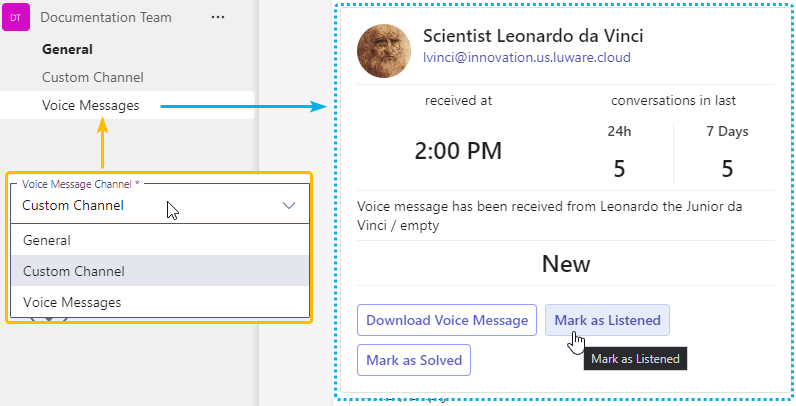 ☝ Please note: When changing your “Voicemails” channel:
→ Before changing to a new channel we recommend to “download Voicemails” and/or "solve" your pending Adaptive Cards from the previous channel. |
►Transfer on User Exit |
✅ |
- |
✅ |
✅ |
Enables Transfer on User Exit for this service. When toggled on, an additional Service field appears, allowing you to select the target Audio/Video service to which the customer will be automatically transferred once the last Nimbus user ends the call.
|
► DTMF-supported Transfer |
- |
- |
✅ |
✅ |
✅ Precondition: Visible once a target service is selected. Behavior depends on the PSTN configuration of the selected service. Enables DTMF support for the Transfer on User Exit by routing the customer via the target service's configured PSTN number instead of Nimbus internal routing. Only visible when the selected target service has a valid E.164 PSTN number and the required PSTN licenses configured.
💡If the PSTN license is removed after setup, the toggle becomes locked and a warning is displayed. The transfer will fail and is reported as Failed Service Transfer to External. |
Voicemail Transcription |
- |
✅ |
✅Requirements:
 🔎 Notes1 For Direct Call Handling Services: No dedicated Voicemails channel in Microsoft Teams is required. The transcription is shown only in the Voicemails view, not on Adaptive Cards. A Speech Recognizer (Transcriber) must be configured. 2 For Contact Center Services: Transcription is part of the Voicemails view, as there is no dedicated MS Teams channel for this Service Type. |
||
Outbound | |||||
Outbound1 Conversations |
- |
✅ |
✅ |
✅ |
When enabled, the Outbound Call 1 feature allows …
1 Outbound Call preconditions and technical limitations apply for both users and services accessing this feature. |
| Outbound1 with Workflow | - | - |
✅ | ✅ |
✅Precondition: Service Owners must use the “Schedule an Outbound Call with Workflow” Flow Action to schedule the call. Enables this Service for Outbound Call with Workflow. Switching the toggle on allows you to select an Audio/Video workflow. 1 Outbound Call preconditions and technical limitations apply for both users and services accessing this feature. |
► Transfer on User Exit |
✅ |
- |
✅ |
✅ |
Enables Transfer on User Exit for this service. When toggled on, an additional Service field appears, allowing you to select the target Audio/Video service to which the customer will be automatically transferred once the last Nimbus user ends the call.
|
► DTMF-supported Transfer |
- |
- |
✅ |
✅ |
Visible once a target service is selected. Behavior depends on the PSTN configuration of the selected service. Enables DTMF support for the Transfer on User Exit by routing the customer via the target service's configured PSTN number instead of Nimbus internal routing. Only visible when the selected target service has a valid E.164 PSTN number and the required PSTN licenses configured.
💡If the PSTN license is removed after setup, the toggle becomes locked and a warning is displayed. The transfer will fail and is reported as Failed Service Transfer to External. |
| Waiting Music | ✅ | ✅ |
✅ | ✅ |
You can select a Playlist to play for callers while they are waiting in queue. 💡The service falls back to the OU Favorite or the Luware Standard playlist when:
💡A hint below the dropdown shows which playlist is currently in effect and where it comes from. Favorites are defined in the Playlist UI. |
Instant Messaging
|
to configure |
Service Type / License | Detail description | ||
AR |
ER |
CC |
AR = Advanced Routing, ER = Enterprise Routing, CC = Contact Center. |
|
Inbound | ||||
Instant Messaging |
- |
- |
✅ |
Allows services to handle the Instant Messaging modality, using any combination of the integration channels listed below (Interact, WhatsApp, SMS). 💡For more details on how this modality is handled by your users, visit Instant Message Handling. ✅Precondition: At least one integration with the corresponding Instant Messaging compatible Workflow1 needs to be set up. Consult Use Case - Setting Up Instant Messaging for a detailed introduction and walkthrough. |
► Parallel Tasks Blocking Mode |
- |
- |
✅ |
Determines whether an active (connected) Instant Messaging task blocks further task distribution to the user. Options:
✅ Precondition: Requires Task Parallelization to be enabled for the user. → See "(Non-)Blocking Tasks" on the Task Parallelization page for the full behavior. |
► Interact |
- |
- |
✅ |
✅Precondition: Requires implementation of Use Case - Setting Up Interact. 💡Optionally, you may specify:
|
- |
- |
✅ |
✅Precondition: Requires implementation of Use Case - Setting Up a WhatsApp Integration in Twilio. 💡Optionally, you may specify:
|
|
► SMS/RCS
|
- |
- |
✅ |
✅Precondition: Requires implementation of Use Case - Setting Up a SMS Integration in Twilio. 💡Optionally, you may specify:
|
🔎Footnotes
1 Workflow activity compatibility: Note that your selected workflows may show a warning due to having incompatible activities. In such a case you need to either edit that workflow or change to a compatible one. → Also refer to chapter “Workflows” below for more details
Show Supported IM Activities
INC Instant Messaging supported WF activities
Currently the following Workflow activities are supported for Instant Messaging workflows:
▼Workflow Activity | Chat Integration path via ► |
Interact |
SMS |
|
|---|---|---|---|
Conversation Handling | |||
Accept |
✅ |
✅ |
✅ |
Announcement |
❌ |
❌ |
❌ |
Collect Information |
✅ |
✅ |
✅ |
Delay |
✅ |
✅ |
✅ |
Disconnect |
✅ |
✅ |
✅ |
Disconnect as Handled |
❌ |
❌ |
❌ |
Forward |
❌ |
❌ |
❌ |
Input Customer |
✅ |
✅ |
✅ |
Input Customer (Advanced) |
❌ |
❌ |
❌ |
Mark as Handled |
❌ |
❌ |
❌ |
Message |
✅ |
✅ |
✅ |
Play Music |
❌ |
❌ |
❌ |
Reply |
❌ |
❌ |
❌ |
Save to Parameter |
✅ |
✅ |
✅ |
Standby Duty |
❌ |
❌ |
❌ |
Transfer |
✅ (to service only) |
✅ (to service only) |
✅ (to service only) |
Virtual User |
❌ |
❌ |
❌ |
Voice Message |
❌ |
❌ |
❌ |
Web Request |
✅ |
✅ |
✅ |
Check | |||
Availability-based Routing |
✅ |
✅ |
✅ |
Check Opening Hours |
✅ |
✅ |
✅ |
Check Parameter |
✅ |
✅ |
✅ |
Get Available Users |
✅ |
✅ |
✅ |
Get Queue Position |
✅ |
✅ |
✅ |
Wait for Parameter |
❌ |
❌ |
❌ |
Queue | |||
Cancel Task |
✅ |
✅ |
✅ |
Check Task |
✅ |
✅ |
✅ |
Distribution Priority |
✅ |
✅ |
✅ |
Queue |
❌ |
❌ |
❌ |
Queue Task |
✅ |
✅ |
✅ |
💡General Note: If a workflow is edited in post using unsupported activities, the Nimbus Reporting session will terminate with a “failed” outcome.
2 Messaging Entry configuration on Service Transfer: Messaging Entries specify how Nimbus connects with outside services to provide functionality (e.g. SMS chat with an outwards facing phone number). You may leave this field blank, in which case Nimbus will refer to the configuration specified in the previous (e.g. front desk) service, that transferred the chat session to your service.
3 System Message re-use: Service System Messages can be re-used across all channels and, however you should consider using shorter or specific messages for certain channels (e.g. SMS causing cost per message).
External Task
|
to configure |
Service Type / License | Detail description | ||
AR |
ER |
CC |
AR = Advanced Routing, ER = Enterprise Routing, CC = Contact Center. |
|
Inbound | ||||
External Task |
- |
- |
✅ |
Allows services to handle the External Tasks modality. ✅Related action: External tasks require a working Nimbus Power Automate Connector which handles the creation of such tasks, e.g. triggered by or involving 3rd party systems. 💡For more details on how this looks for Nimbus users, visit External Task Handling. |
► Parallel Tasks Blocking Mode |
- |
- |
✅ |
Determines whether an active (connected) External Task blocks further task distribution to the user. Options:
✅ Precondition: Requires Task Parallelization to be enabled for the user. → See "(Non-)Blocking Tasks" on the Task Parallelization page for the full behavior. |
|
to configure |
Service Type / License | Detail description | ||
AR |
ER |
CC |
AR = Advanced Routing, ER = Enterprise Routing, CC = Contact Center. |
|
Inbound | ||||
| - | - | ✅ |
Allows services to handle the Email modality. ✅ Setup: Refer to Use Case - Setting Up Email for step-by-step instructions. 💡 For more details on how this looks for Nimbus users, visit Email Handling. |
|
► Parallel Tasks Blocking Mode |
- | - | ✅ |
Determines whether an active (connected) Email task blocks further task distribution to the user. Options:
✅ Precondition: Requires Task Parallelization to be enabled for the user. → See "(Non-)Blocking Tasks" on the Task Parallelization page for the full behavior. |
► Mailbox |
- | - | ✅ | ✅ Precondition: Allows to set a previously configured Mailbox. The mailbox is mandatory to allow Nimbus to sort in handled Email tasks into mailbox folders1 accordingly. |
► Folder |
- | - | ✅ | ✅ Precondition: Requires a configured Mailbox. Default is the system folder “Inbox” . Folders can only be selected if not already in use by another service1. |
1🔎 Notes:
A single Mailbox can be shared among multiple services — the folder however must be unique per service. This means that so one mailbox can be shared across multiple services as long as each watches a different folder.
Learn more about Mailbox folders
INC Email Mailbox Folders
| Mailbox Folder name1 | Description / Task relevance |
|---|---|
| Inbox (Default) |
When a new mail is reaching the inbox, Nimbus creates a Reporting2 Service Session. ☝ Caution: Check your inbox for spam / malware
✅ As Administrator: → Ensure that you check incoming mail for spam and malware before it reaches the Inbox and gets distributed by Nimbus. |
|
<Custom Folder> (Any name) |
Allows subscription of one service per folder. A folder already assigned to another service (via Modalities Service Settings) cannot be selected again. ⮑ A warning “This folder is already assigned to another service” is shown. ✅ Recommended Action - Pre-Sorting: Use Outlook/Exchange rules to pre-sort incoming mail into subfolders, so only mails in folders subscribed by your services turn into a Nimbus task. |
| Handled |
The Email is moved here when
|
| WF ended | Moved here when the “Disconnect” Conversation Handling Activity was used. Applies to either Reporting(1) status: “Workflow Disconnect After Queue” or “Workflow Disconnect” |
| Failed |
The Email is moved here when:
|
1 Only Nimbus-managed folders (Handled/Workflow Ended/Failed), and custom subfolders are selectable in Modalities Service Settings; other well-known system folders (Drafts, Sent Items, Junk Email, etc.) are excluded from the picker.
2 🔎See Nimbus Reporting Model > Static Dimensions > User Session Outcomes / Service Session Outcomes. By checking Historical Sessions or the Nimbus Power BI Template you can see which actor (user/system) lead to the final session outcome.
Workflows
💡All Workflows are shown as previews only. To edit the source workflow, head over to the Configuration and create / edit a workflow in the corresponding modality.
General Notes
🔍Note that each modality has a separate workflow selection pulldown. The availability of workflow entries depends on the following factors:
- Workflows available for that modality: For example, if no “Instant Messaging” workflow has been created in the Nimbus Configuration before, the selection box will be empty.
- Organization Unit visibility rules: The respective Organization Unit of your service determines which workflow entries are visible. If an administrator moves a workflow entity away from your service's “visibility” to another Organization Unit, that workflow cannot be selected anymore.
- Compatibility checks: When a workflow has unsupported / licensed or other other technical dependencies, it will be marked with a warning in the selection dropdown.

Switching between Workflows
Note: Workflows are IMMEDAITELY effective as your changes are saved.
- Before switching between your workflow → please carefully read the advice below.
- Particularly for Workflows on productive Services we strongly advise to work with a copy and switch over when you are done.
- To apply a new workflow, select the new entry and click “Save & Apply”.
As you confirm a workflow change:
⮑ … Task Distribution in Nimbus starts at the moment a task was originally created with, using the workflow applicable at that time.
⮑ …. already queued tasks will not be affected by a workflow change.
☝WORKFLOW CHANGES DURING SERVICE HOURS MAY RESULT IN LOST TASKS
Beware of lost tasks: Clicking "Save and Apply" on Workflow changes has an an IMMEDIATE effect for all future incoming tasks on your service. An incomplete or erroneous edited workflow may cause interruptions to your daily operations, including lost tasks.
🤔 How can I minimize disruptions to my Services?
Avoid changes to shared workflows during busy daily hours!
✅ Head to the Configuration > Workflows list and check if workflows are shown as "Used in Service". Note that multiple Services can use the same workflow.

✅ Plan changes with a workflow copy: You can rename the copy, do your testing first, e.g. on a small backup service, then switch over once satisfied.
✅ Additional precautionary steps:
→ Plan workflow switches outside your productive business hours. Especially on productive Services with a high volume of tasks we recommend this to minimize any potential impacts.
→ Remember that workflows may be shared. Any experimental / work-in-progress workflows should be moved into Organization Units where productive Services cannot opt into them. Think of this as a protected "OU-folder" that is out of sight of any Service owner. In the same fashion you can also place other configuration items and Services under that OU until they are ready.
→ Monitor changes: You can also check Statistics and ask your administrator to monitor Service Operations after a larger workflow change.